 NRS Invoice Gateway
Create an API Key and Gateway Domain
Generate state-bound credentials, claim a safe domain label, and complete Duplo's approval workflow.
Your integration calls Duplo at a hostname Duplo provisions for you, such as acme.invoice.tryduplo.com, using an API key you generate in Duplo Dashboard. The hostname determines which business, state, and approved configuration the request runs against, and the API key authenticates the caller as that business. Both must resolve to the same business and state; a mismatch is rejected rather than routed elsewhere.
Generate your API credentials
In Duplo Dashboard, go to Settings, and under Business Settings select Developer API.
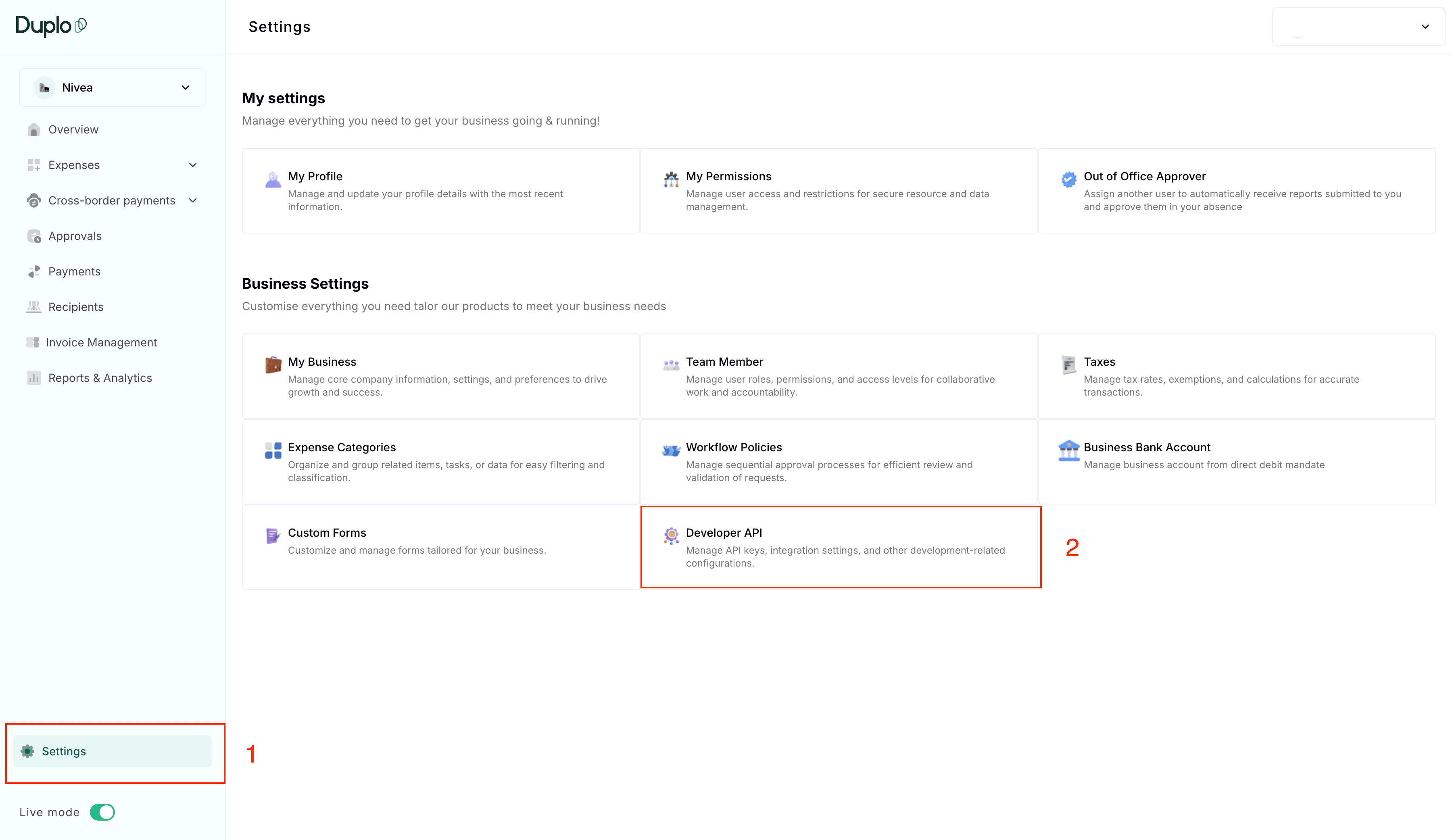
If Developer API is not listed, your business has not been enabled for it yet. Contact support to request access.
On the Developer API page, click Generate API credentials and enter the OTP sent to your email. The credentials are displayed only once, so save them as soon as you see them. If they are ever compromised, generate a new set the same way, which invalidates the previous one.
Generating credentials returns two values, an API key and a client secret, both issued for the state your business is currently in, test or live. NRS Invoice Gateway requests use the API key only: send it as x-api-key on every request. Store the client secret securely, but no Gateway operation asks for it. Because the key carries its state, a key generated in test does not authenticate against a live hostname, and that pairing is what the Gateway checks on each request.
Choose a domain label
A valid domain label:
- Is 4–15 characters after trimming.
- Uses lowercase letters, numbers, and internal hyphens.
- Starts and ends with a letter or number.
- Contains no dots, URL scheme, path, reserved platform terms, or disallowed words.
- Is available across active Gateway registrations.
The availability indicator is advisory. A simultaneous submission can still win the label before yours; the final submission enforces uniqueness.
Submit the domain request
In Duplo Dashboard, go to Settings, select Developer API under Business Settings, and scroll to the E-invoicing configuration section.
Turn on Register as a system integrator and enter your label in the Base URL field. The form appends .invoice.tryduplo.com for you, so enter the label on its own rather than a full URL.
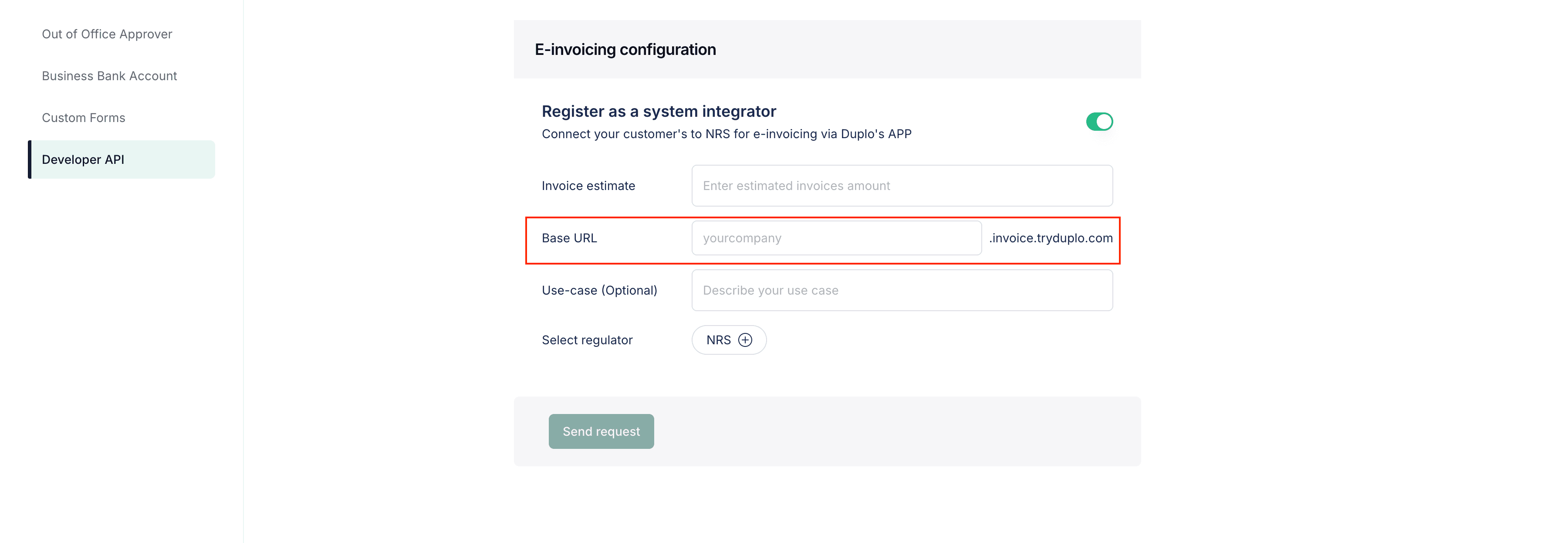
Complete the remaining fields: Invoice estimate, a realistic planning figure; Use-case, which is optional; and Select regulator, which is NRS. Then click Send request.
The initial status is pending. Duplo reviews business eligibility, signing-fee readiness, and the requested use case. Approval assigns either PASSTHROUGH or STORED mode.
Check
Duplo canonicalizes the label and reports current availability.
Submit
The request is pinned to the current business and test/live state.
Review
Duplo verifies eligibility, billing readiness, and the operating mode.
Approve
The hostname becomes eligible for Gateway routing.
Webhook and network settings
If you want inbound notifications, save one public HTTPS webhook URL on the active API credential. You can also save up to 50 public IPv4 or IPv6 egress addresses in ipWhitelisted; private, loopback, link-local, reserved, and malformed entries are rejected. An empty list means unrestricted by source IP, and the setting survives normal key rotation.
IP allowlisting protects customer-facing Gateway routes
Gateway checks the public address your request arrives from. It never uses
a caller-supplied X-Forwarded-For value for this decision.
An empty ipWhitelisted list leaves the credential unrestricted by source
IP. When the list is non-empty, a request from an address that isn't on the
list returns 403 before the requested Gateway operation is authorized.
Test the rule by calling your approved hostname from each of your real
egress addresses.
Webhook and IP settings survive a normal key rotation, but verify them after any state transition. See Restrict your API key for the direct Spend API behavior and Receive webhooks for Gateway webhook delivery.
How is this guide?
Last updated on