 NRS Invoice Gateway
Set Up Your Business in Duplo Dashboard
Set up a new or existing business in Duplo Dashboard and make it eligible for NRS Invoice Gateway access.
NRS Invoice Gateway is attached to a top-level business managed in Duplo Dashboard. That business owns the API key, approved domain, NGN business wallet, and every represented-business relationship.
New to Duplo Dashboard
Create the business account
Open Duplo Dashboard and choose the option to create an account. Enter your real business and owner details. Use a monitored, non-disposable email address because verification, security challenges, and operational notices go to that address.
Verify the email address
Complete the verification sent by Duplo. If the verification expires, request a new one from the same signup flow rather than starting a second business registration.
Sign in and enter the email OTP
After you enter your password, Duplo emails a one-time password. Enter it to finish signing in and establish a dashboard session with your user, profile, role, and business context.
Complete business setup and activation
Finish the required business and compliance details shown in Duplo Dashboard. Two separate things must be true before you can request an NRS Invoice Gateway domain: the business is active, meaning the account itself is live in Duplo Dashboard, and it is activated for e-invoicing. Activating the business also creates the NGN business wallet that pays your signing fees.
Sign in again after activation
Activation can invalidate the earlier session. Sign in again, select the top-level business, and confirm that Duplo Dashboard shows the intended test or live state before generating credentials.
Already using Duplo Dashboard
Sign in to the existing account
Use the owner or integration administrator account. Do not create a duplicate business just to enable NRS Invoice Gateway.
Select the correct business
If your user belongs to multiple businesses, select the top-level business that should own the domain and pay signing fees. A child business in Duplo Dashboard cannot register as the system integrator.
Confirm account readiness
Verify that the business is active and activated for e-invoicing, that Developer API is listed under Business Settings in Settings, and that an active NGN business wallet exists in the current state. Ask your Duplo account contact to enable any missing administrator-controlled capability.
Confirm the integration role
Use a role that can generate and view API keys, manage API-key settings, and set up NRS settings. Generating a key also prompts for the email OTP.
Account readiness checklist
The domain request is eligible only when all of these are true:
- The selected business is a top-level business.
- The business is active in Duplo Dashboard.
- The business is activated for e-invoicing.
- The dashboard is in the intended
testorlivestate. - Your role can manage the required API and NRS settings.
- You can receive the email OTP that API-key generation requires.
- An active NGN business wallet exists in the current state.
Test and live are separate approval contexts
Your API key and your approved Gateway domain are both bound to the state the business is in. Moving a domain between test and live later is a controlled process rather than a dashboard toggle: Duplo drains the domain, you generate and configure a key for the target state, and the domain is reapproved before traffic resumes. Plan that work with the go-live cut-over steps.
Permission reference
Your Duplo Dashboard role needs these capabilities:
| Capability | Why it is needed |
|---|---|
| Generate API credentials | Create or rotate the Gateway API credentials |
| View credential metadata | Confirm key state, prefix, and settings |
| Manage credential settings | Configure webhook and allowed public IPs |
| Set up NRS | Check and submit a Gateway domain |
| Change test/live state | Move the business between test and live. Once a domain is approved, only as part of the controlled cut-over to live |
To check your own role, go to Settings, and under My settings select My Permissions. The page lists every permission group under What you can access or What you can't access, and each group expands to show the individual permissions it grants.
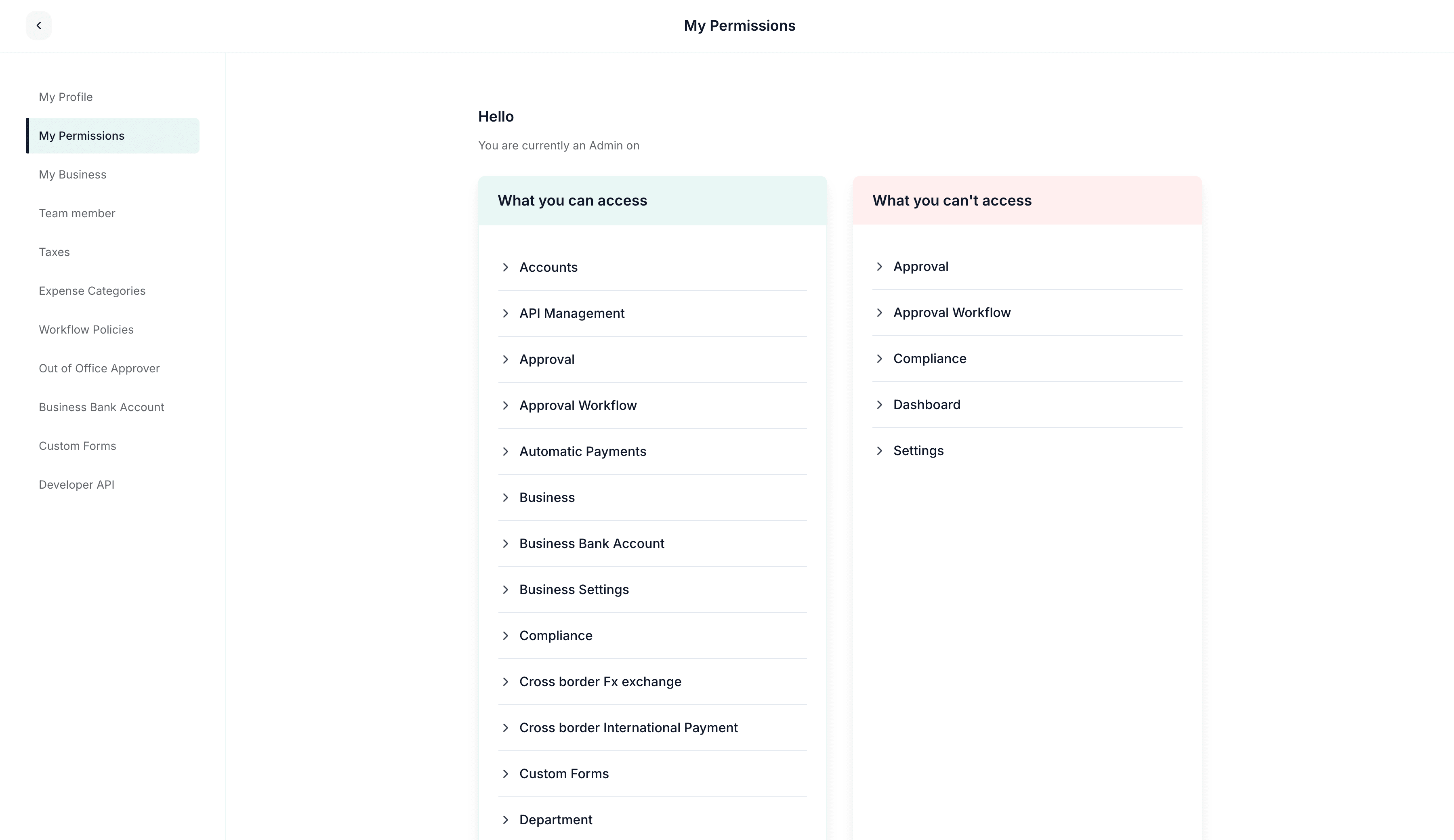
If your organization uses a custom role, update the complete permission set carefully so unrelated permissions are preserved.
What your business pays for
Your business in Duplo Dashboard, not each represented business, is the payer. Duplo resolves the current NGN wallet and approved signing fee server-side. Invoice requests cannot provide or override a wallet, fee, payer, or fee destination. See Billing and safe retries for what is billable and how a failed attempt is recovered.
How is this guide?
Last updated on